Auto Link
Auto Link is a feature that automatically scans your post/page content and turns matching keywords into links. This helps you add consistent links across your site without manually inserting links every time.
Global keywords
Global keywords are keywords that are used across your entire site. To add a global keyword, follow these steps:
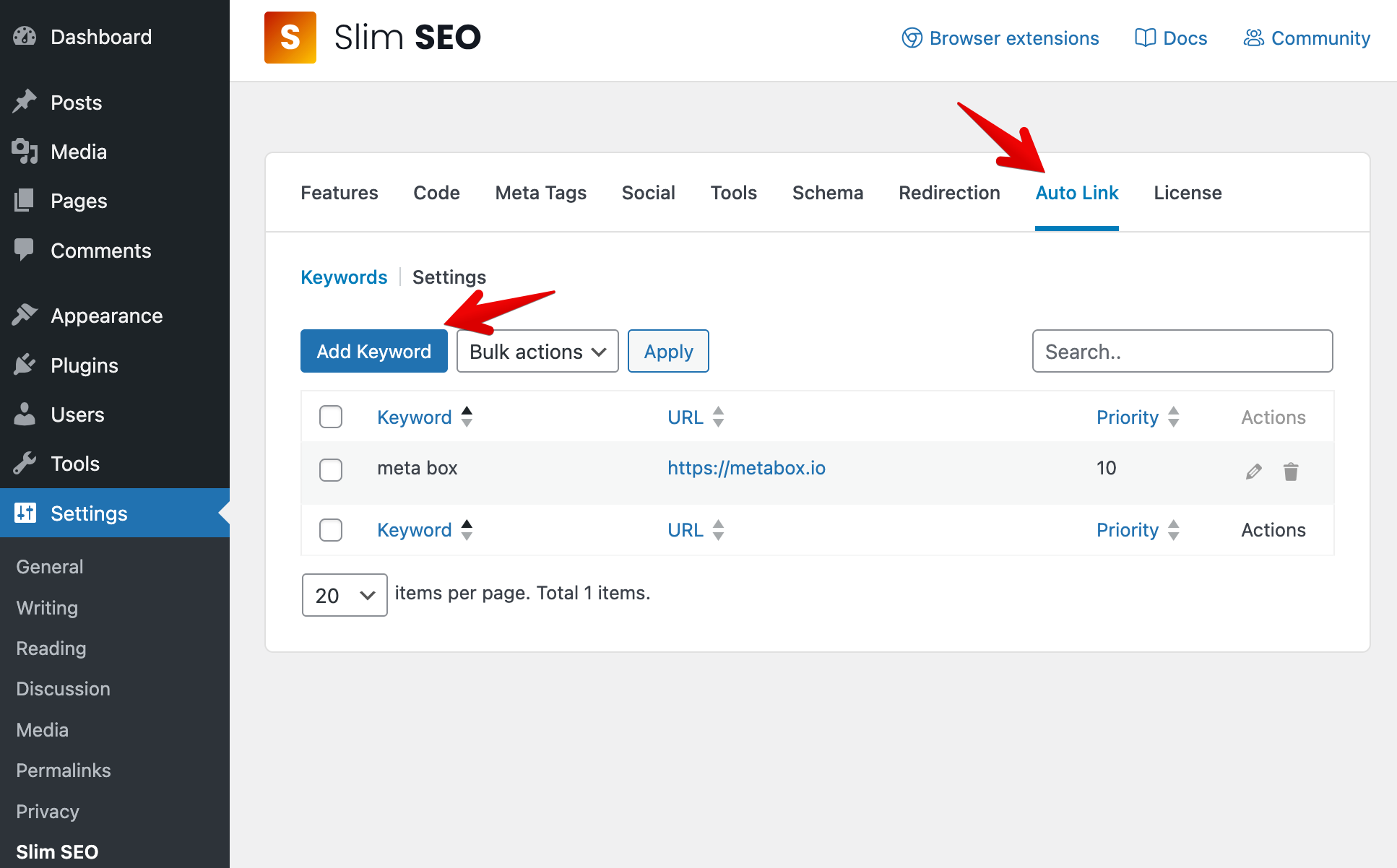
- Go to Settings → Slim SEO → Auto Link tab.
- Open the Keywords tab.
- Click Add Keyword.
A popup will appear with the following options:
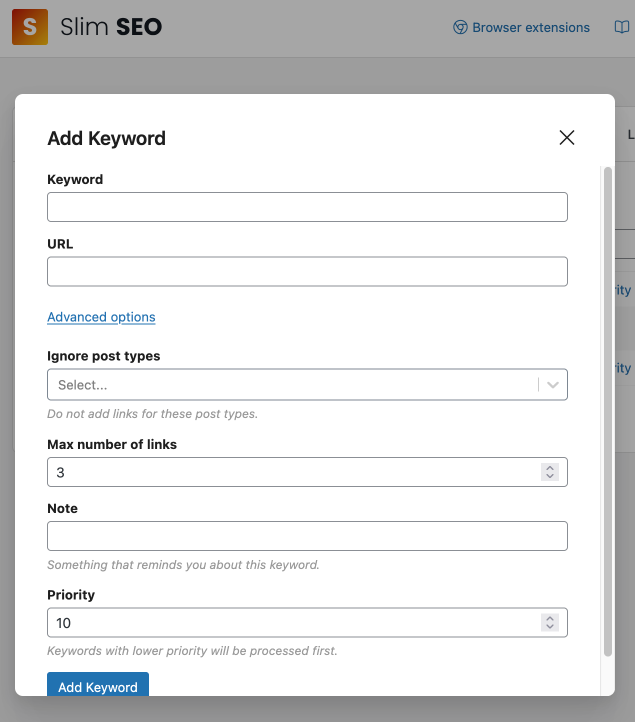
| Option | Description |
|---|---|
| Keyword | The word or phrase you want Auto Link to find in your content. |
| URL | The destination link for that keyword. |
| Ignore post types | Do not add links for this keyword when viewing these post types. |
| Max number of links | The maximum number of links Auto Link will create for this keyword in a single piece of content. |
| Note | A private note to help you remember what this keyword is for. |
| Priority | Controls the order keywords are processed. Keywords with higher priority are processed first. |
- Matching is case-insensitive. For example,
WordPressandwordpressare treated the same. - A keyword must be unique. You can't register the same keyword twice with different URLs.
On this page, you can edit or delete keywords.
- To edit a keyword, click the Edit (pencil) icon.
- To delete a keyword, click the Trash icon.
- To delete multiple keywords at once:
- Select keywords using the checkboxes
- Choose Bulk actions → Delete
- Click Apply
Per-post keywords
Per-post keywords are keywords that are used only for a specific post/page. It's useful when you want a keyword to link to the current post/page's permalink.
To add a per-post keyword, follow these steps:
- Go to Posts/Pages → Edit Post/Page.
- In the Search Engine Optimization meta box, open the Auto link tab.
- Click Add Keyword.
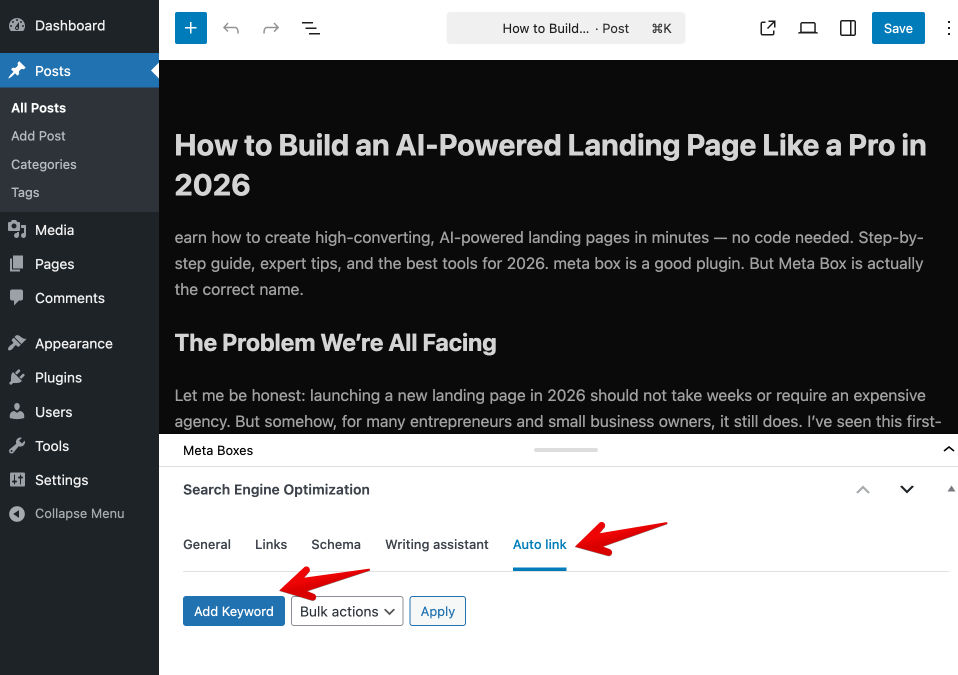
A popup will appear with similar options as the global keywords, except for the URL which will be the current post/page permalink.
Settings
These settings apply across your site. You can view them in the Settings → Slim SEO → Auto Link tab, and select the Settings sub-tab.
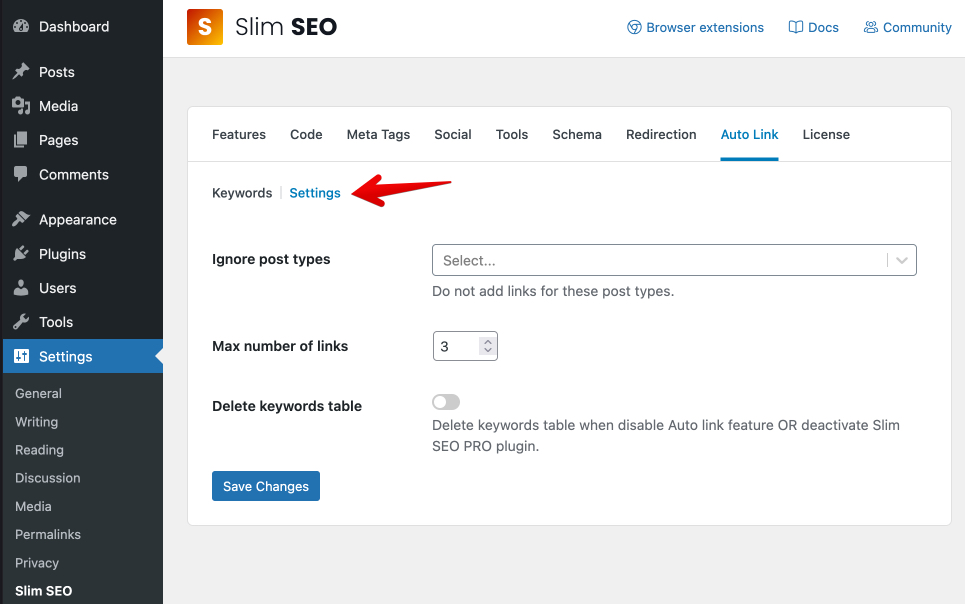
| Option | Description |
|---|---|
| Ignore post types | Do not add links for these post types. |
| Max number of links | The default maximum number of links for each keyword in a single post/page. |
| Delete keywords table | If enabled, Auto Link keyword data will be removed when the Auto Link feature is disabled or Slim SEO Pro is deactivated. |
How does it work?
- Auto Link scans only your post/page content (the main content area).
- When it finds a matching keyword, it replaces that keyword with a link to the URL you set.
- Content only: Auto Link runs only on the post/page content, not on other areas like excerpts or widget text.
- Unique keywords: Because each keyword can only be registered once, you can't use the same keyword for multiple URLs.
Auto Link and Link Manager
Auto Link and Link Manager are two different features:
- Auto Link is used to automatically add links to your content.
- Link Manager is used to manage and monitor your links, including internal links, external links, and broken links.
You can use both features together to get the best of both worlds. For example, you can use Auto Link to automatically add links to your content, and then use Link Manager to get (manual) link suggestions and monitor those links.
Because links added by Auto Link are dynamically generated, they are not visible in the Link Manager's reports, you can't use Link Manager to monitor them.
Troubleshooting
The keyword is not being linked
- Make sure the keyword is added in Auto Link and the URL is valid.
- Check that the current content type is not excluded in Ignore post types (either globally or in the keyword's advanced options).
I can't add the same keyword twice
This is expected. Each keyword must be unique, so Auto Link always knows which URL to use.