Connecting to Google Search Console
URL Indexing needs permission to read your data from Google Search Console (GSC). To get this permission, you create a Google app with your own Google account. You do this once. It is free and takes about 10 minutes.
Why do you need your own app? Google limits how many URLs one app can check each day. When you use your own app, the limit applies only to your site.
Before you start
Make sure of two things:
- Your site is added to Google Search Console.
- Your Google account is an owner or a full user of the site.
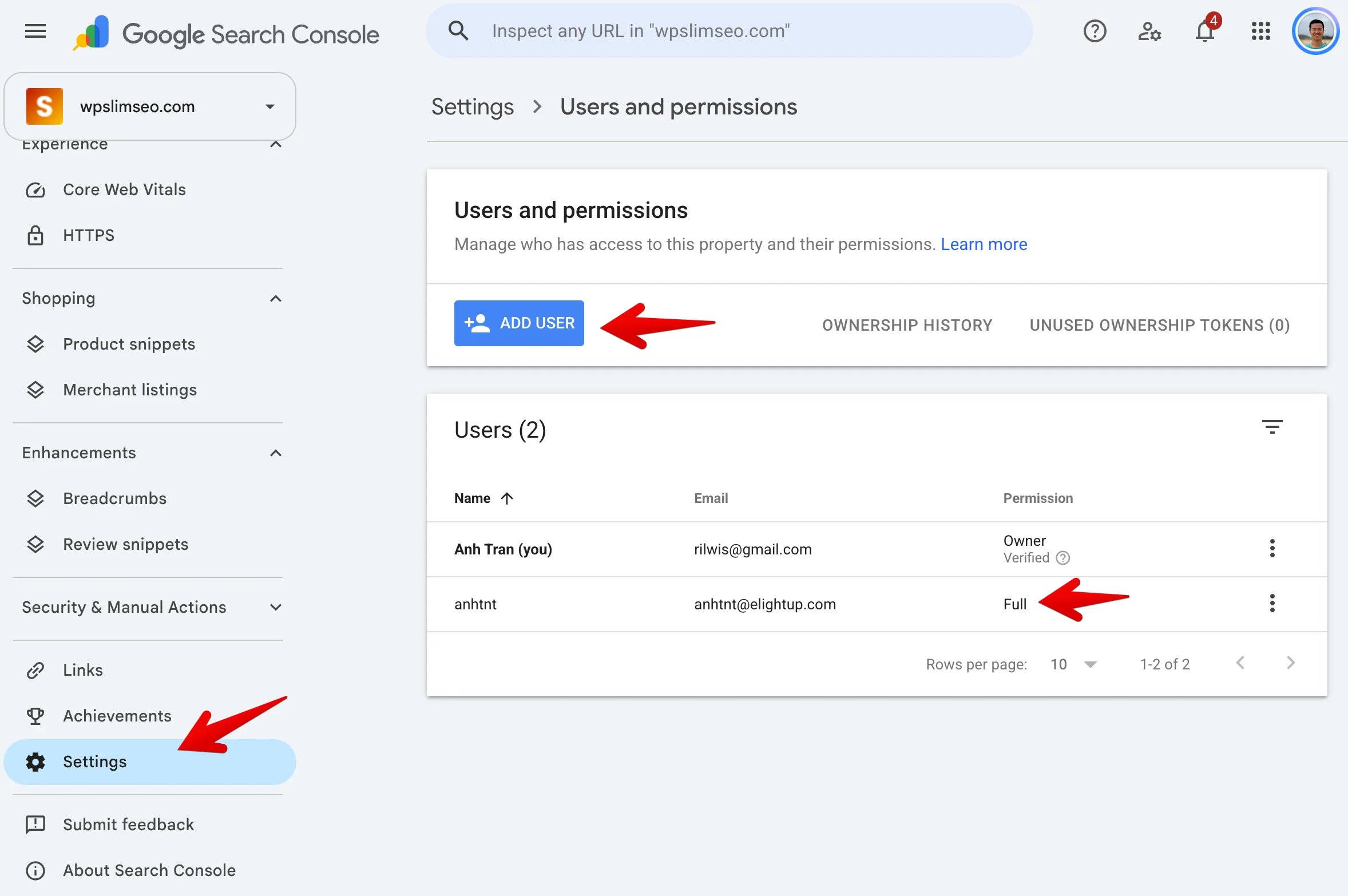
Not the owner? Ask the site owner to add your email. To check or add users, go to Google Search Console > select your site > Settings > Users and permissions:
There are 5 steps:
- Create a project
- Turn on the Google Search Console API
- Set up the consent screen
- Create the credentials
- Connect in WordPress
1. Create a project
Go to Google Cloud Console and sign in with your Google account.
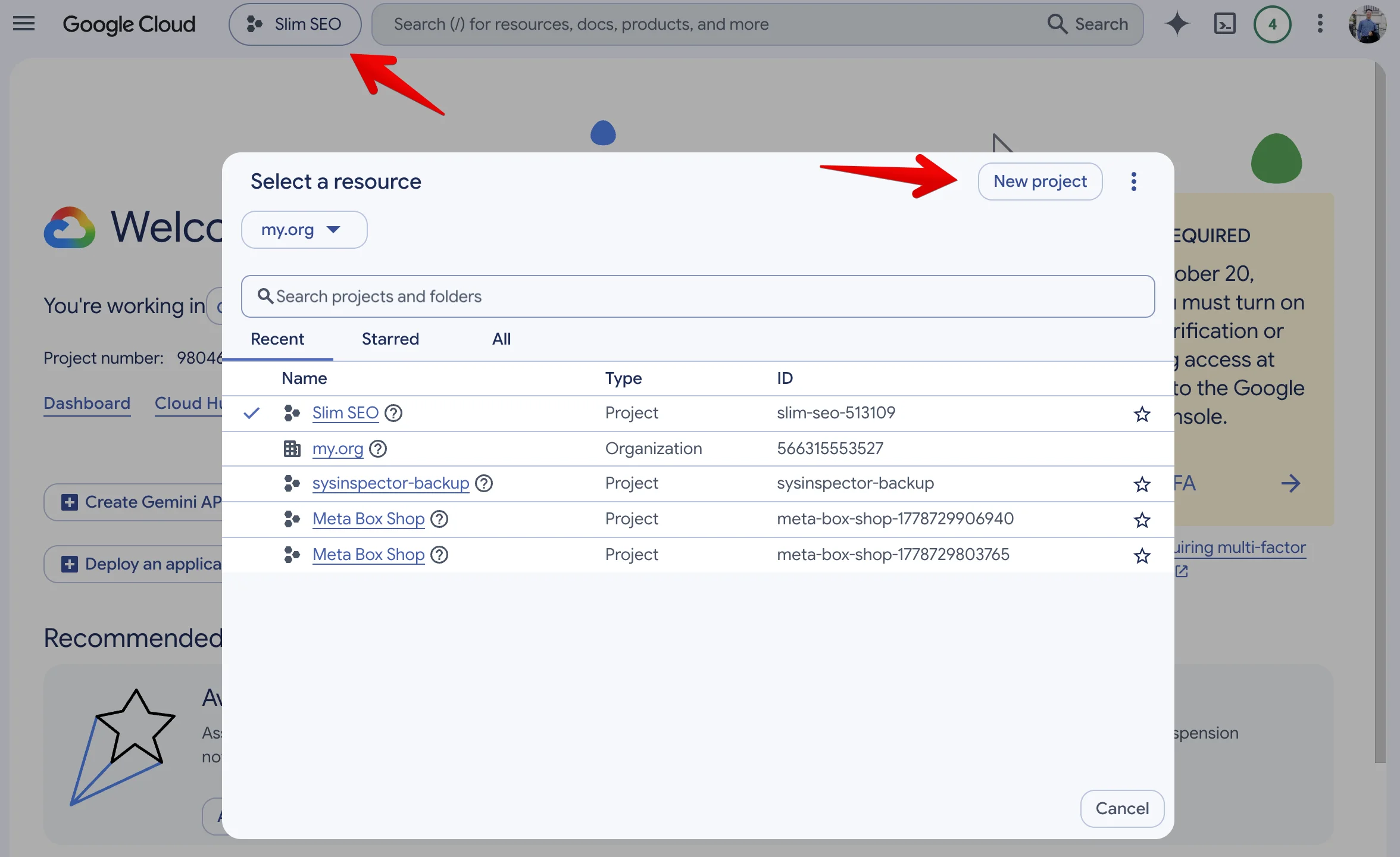
Click the project list at the top left, next to the Google Cloud logo. Click New Project:
Type a project name, for example "My site". Click Create:
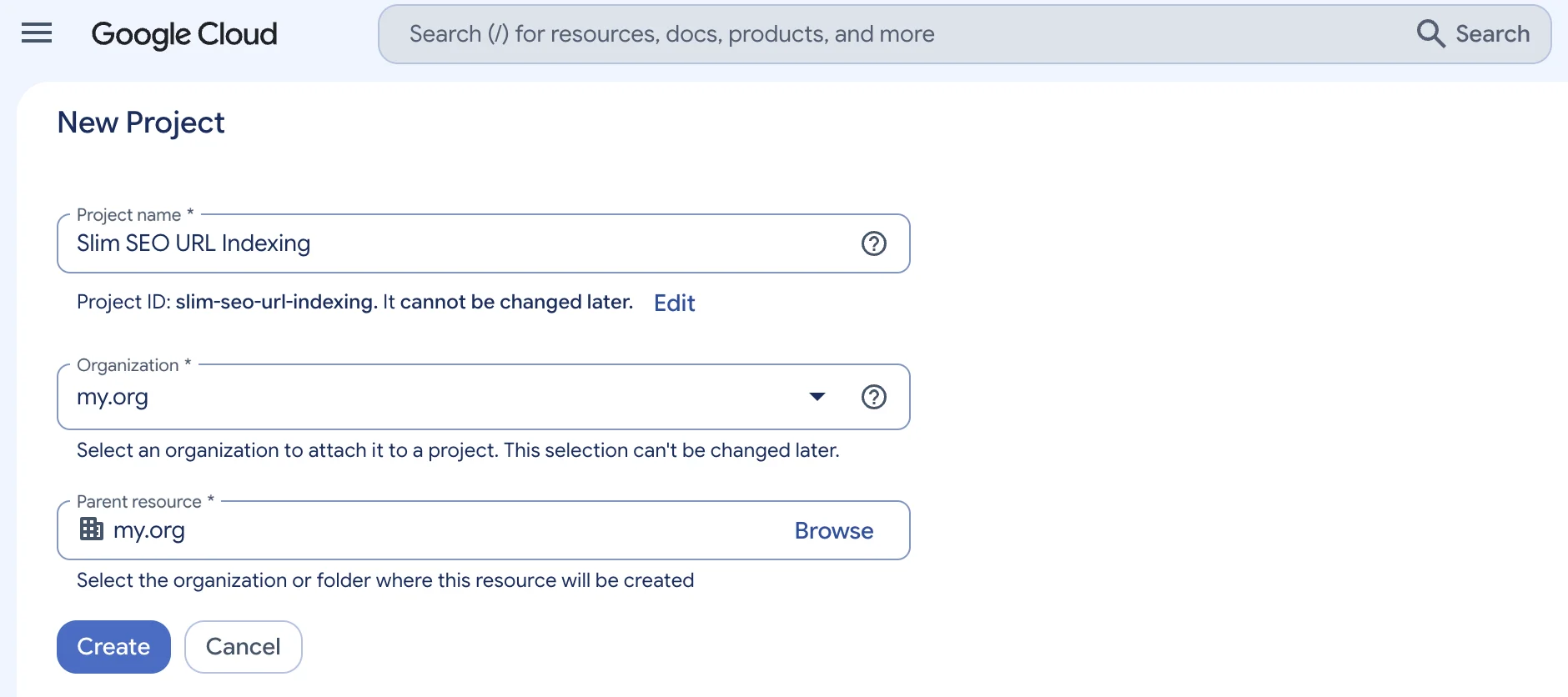
Already have a project? Use it and skip this step.
2. Turn on the Google Search Console API
Select your project in the project list at the top left.
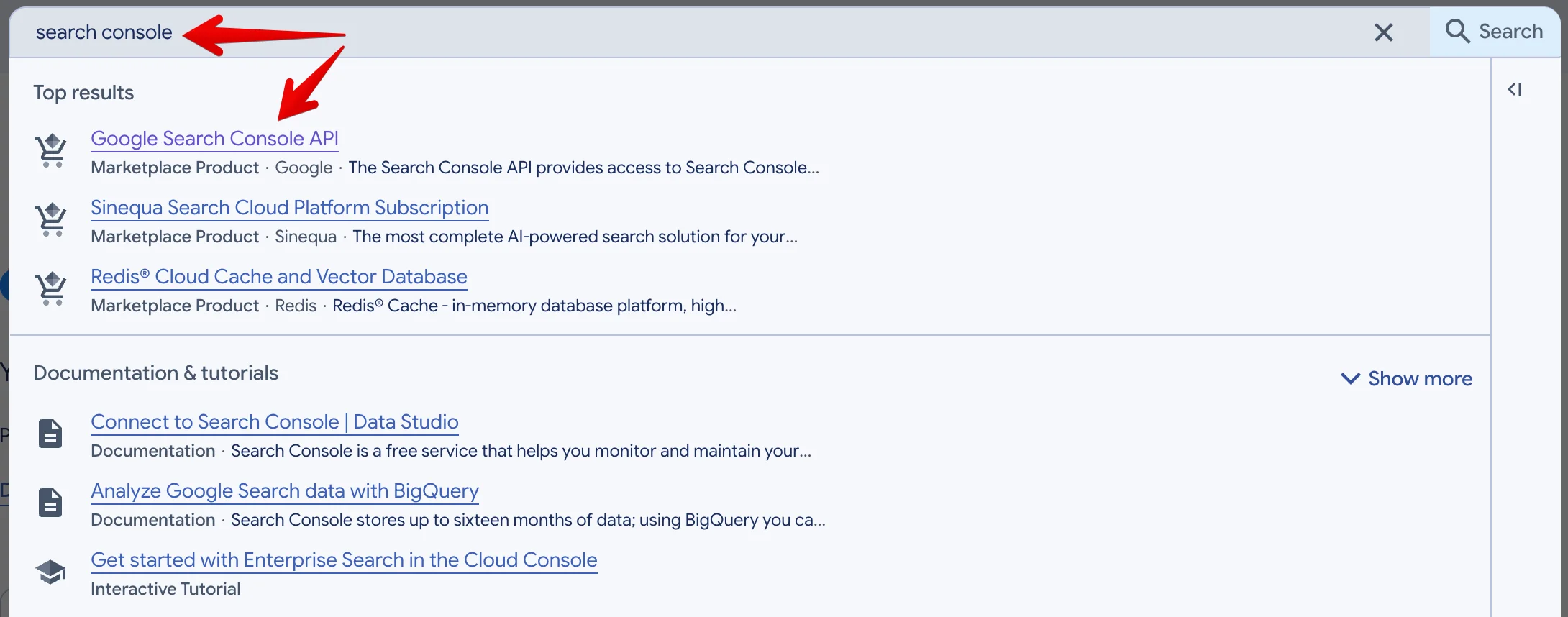
In the search box at the top, type "search console". Click the first result:
Click Enable:
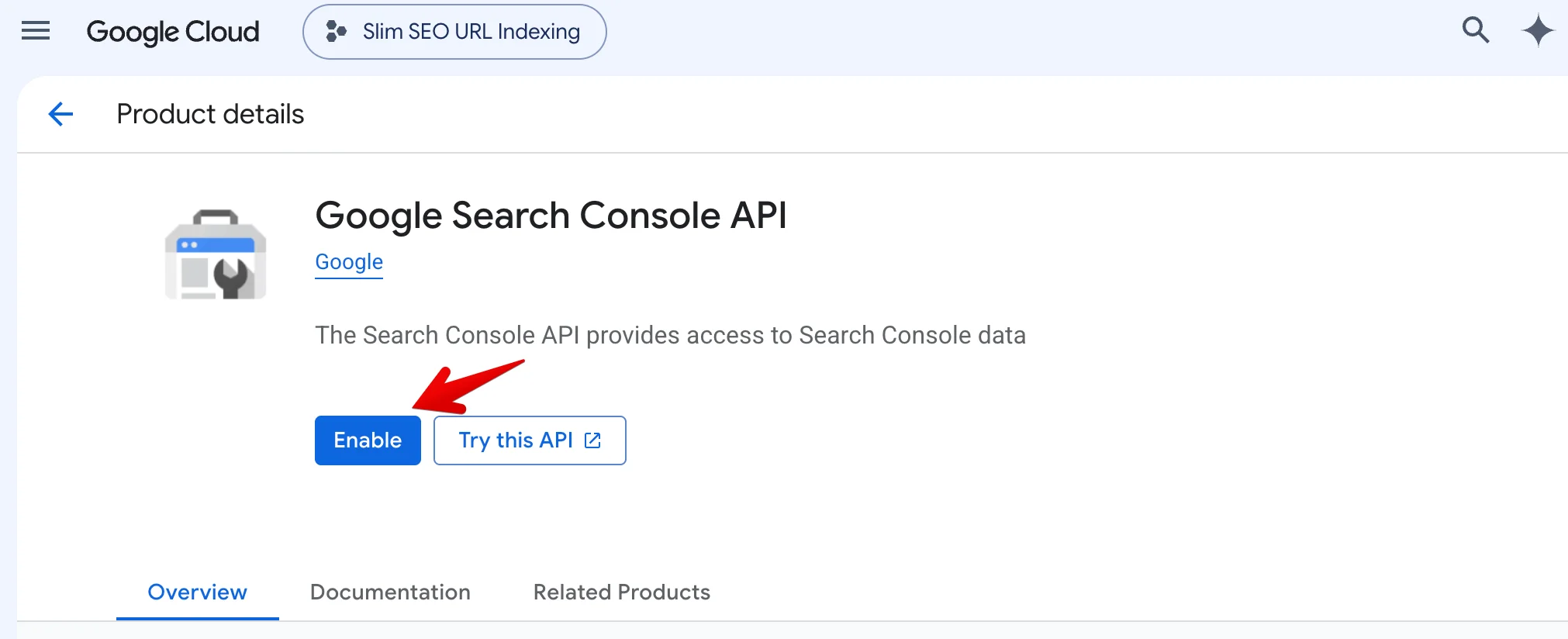
You only need to turn on this API.
3. Set up the consent screen
The consent screen is the page where Google asks you to allow access to your Search Console data. You set it up once.
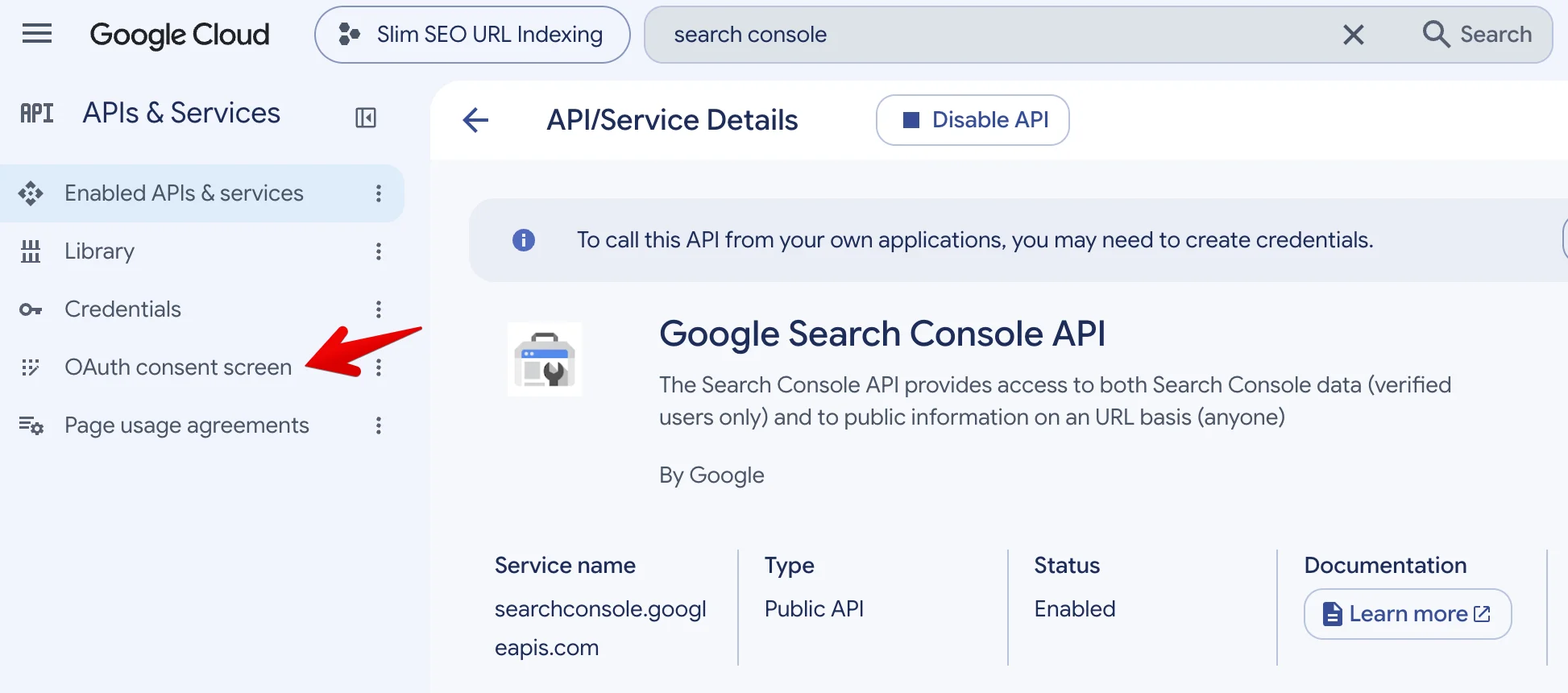
From the left menu, open OAuth consent screen:
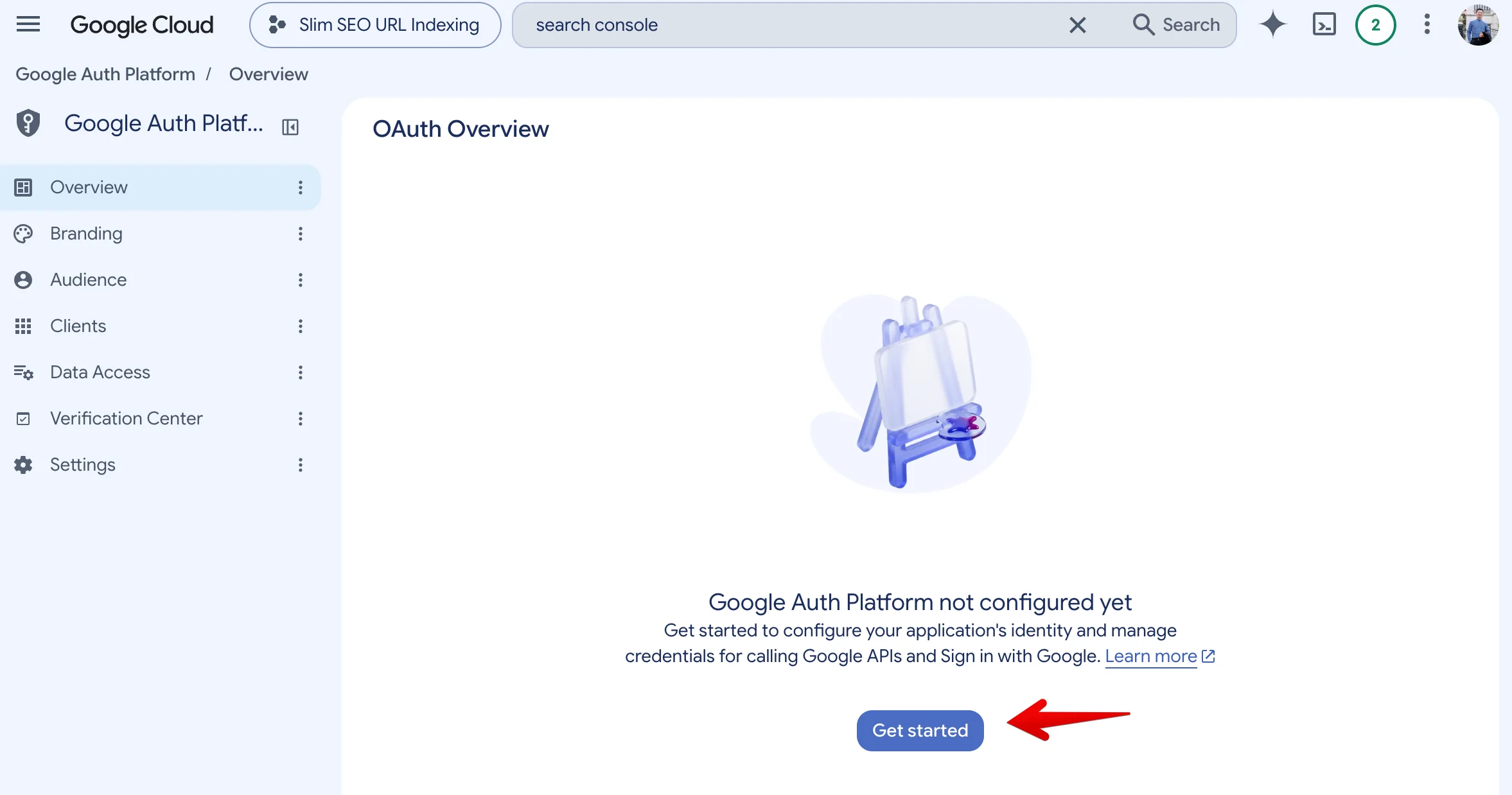
Click Get started:
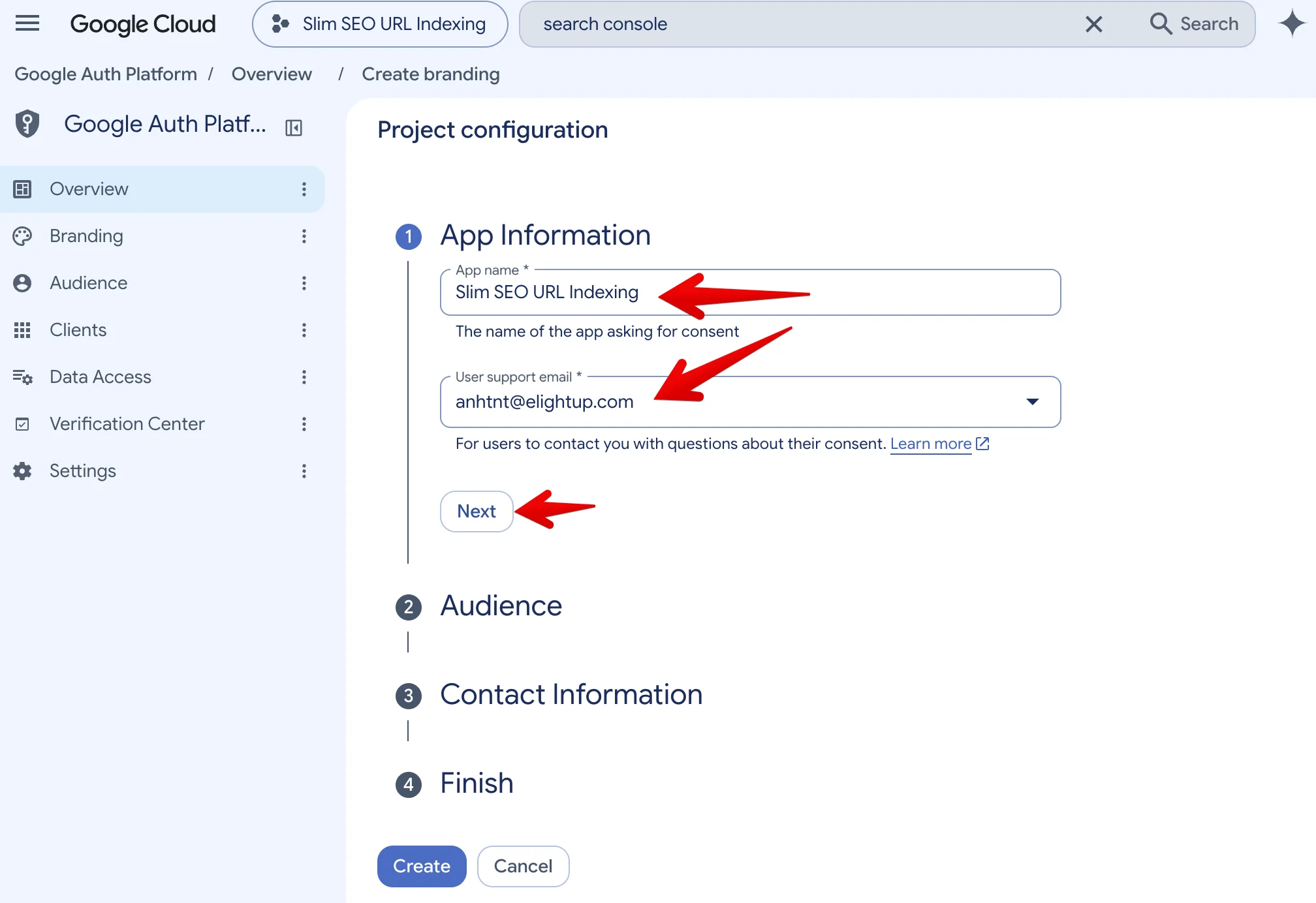
Under App information, enter:
- App name: Any name. We suggest "Slim SEO URL Indexing".
- User support email: Your email.
Click Next:
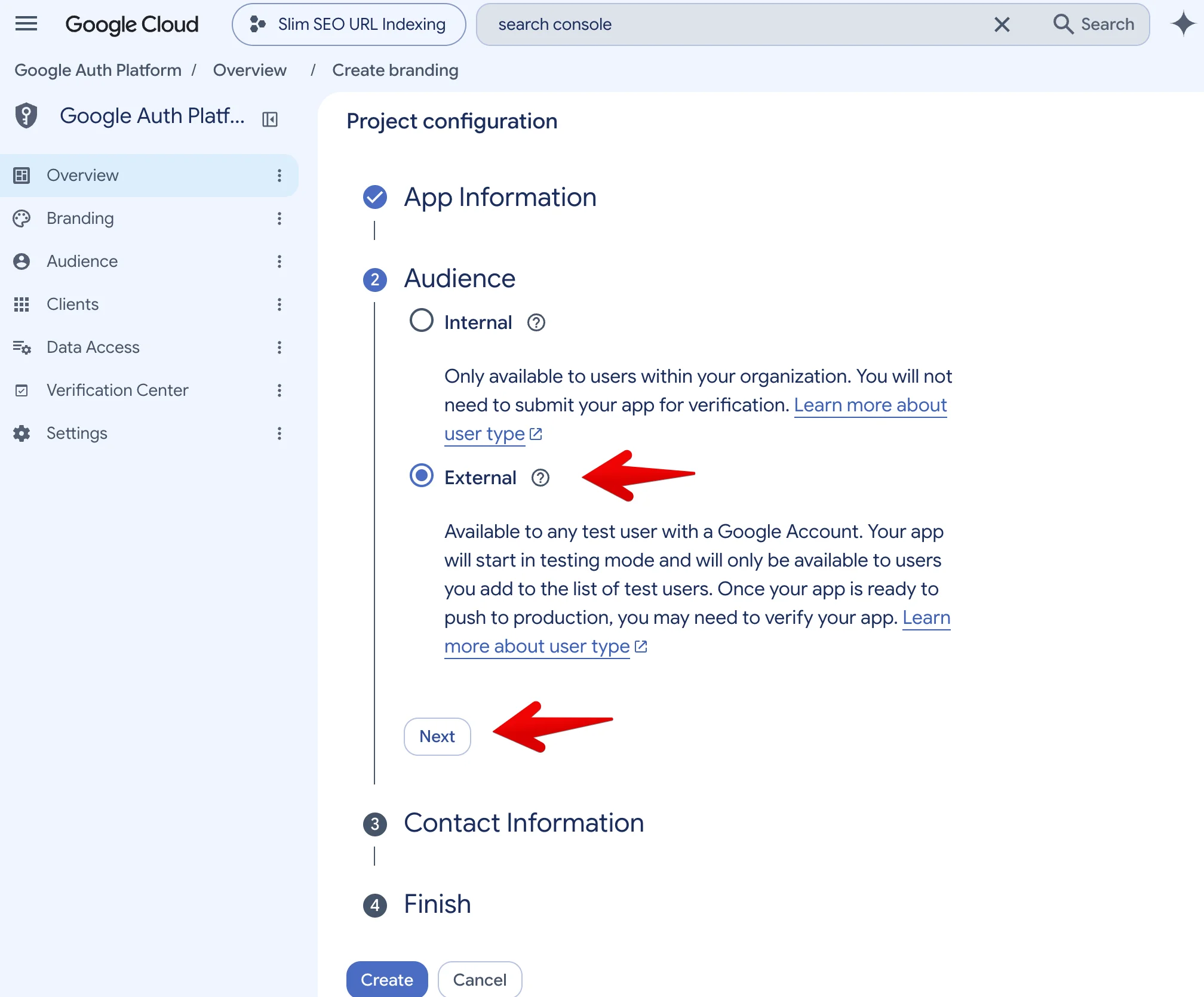
Under Audience, select External:
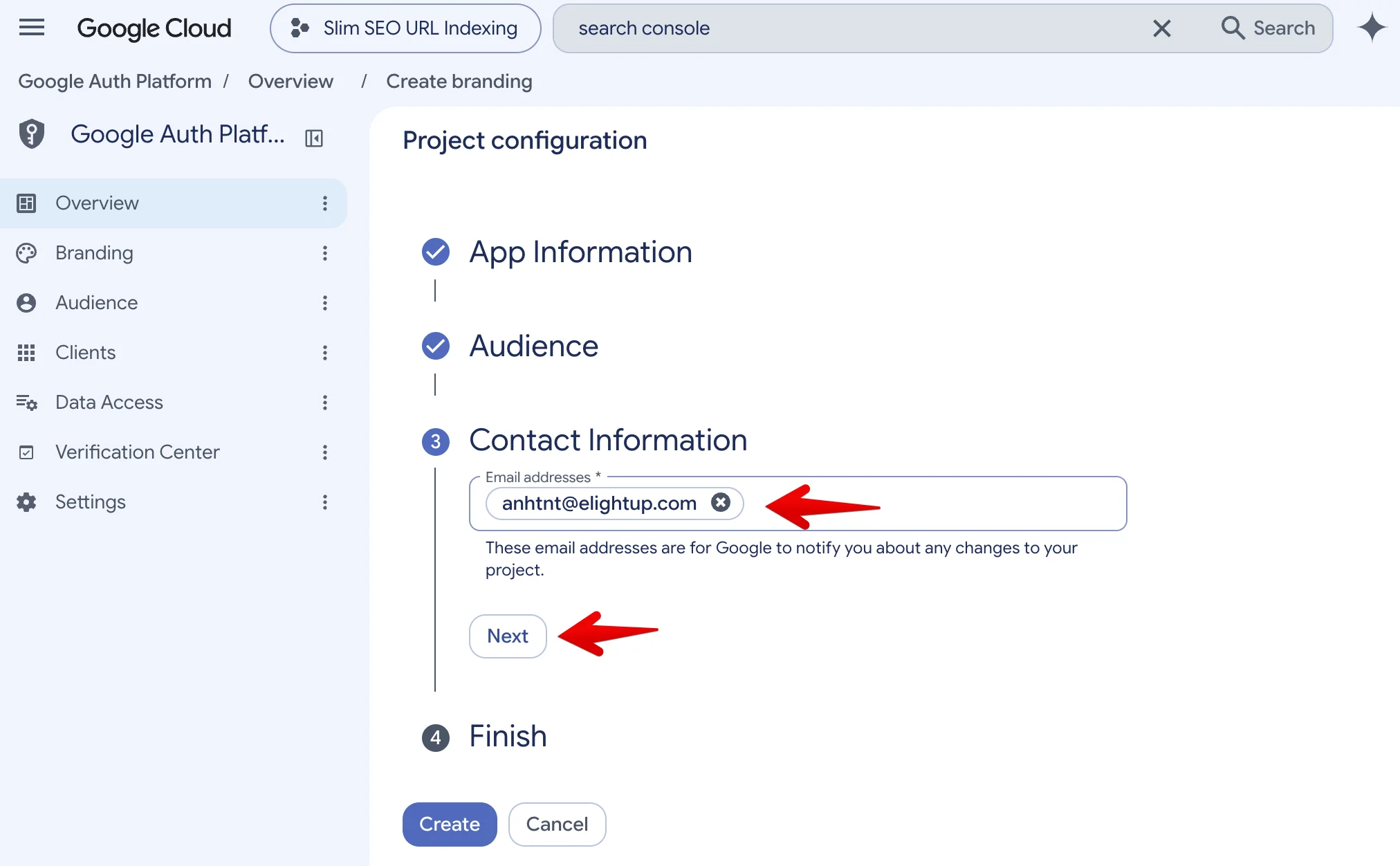
Under Contact information, enter your email:
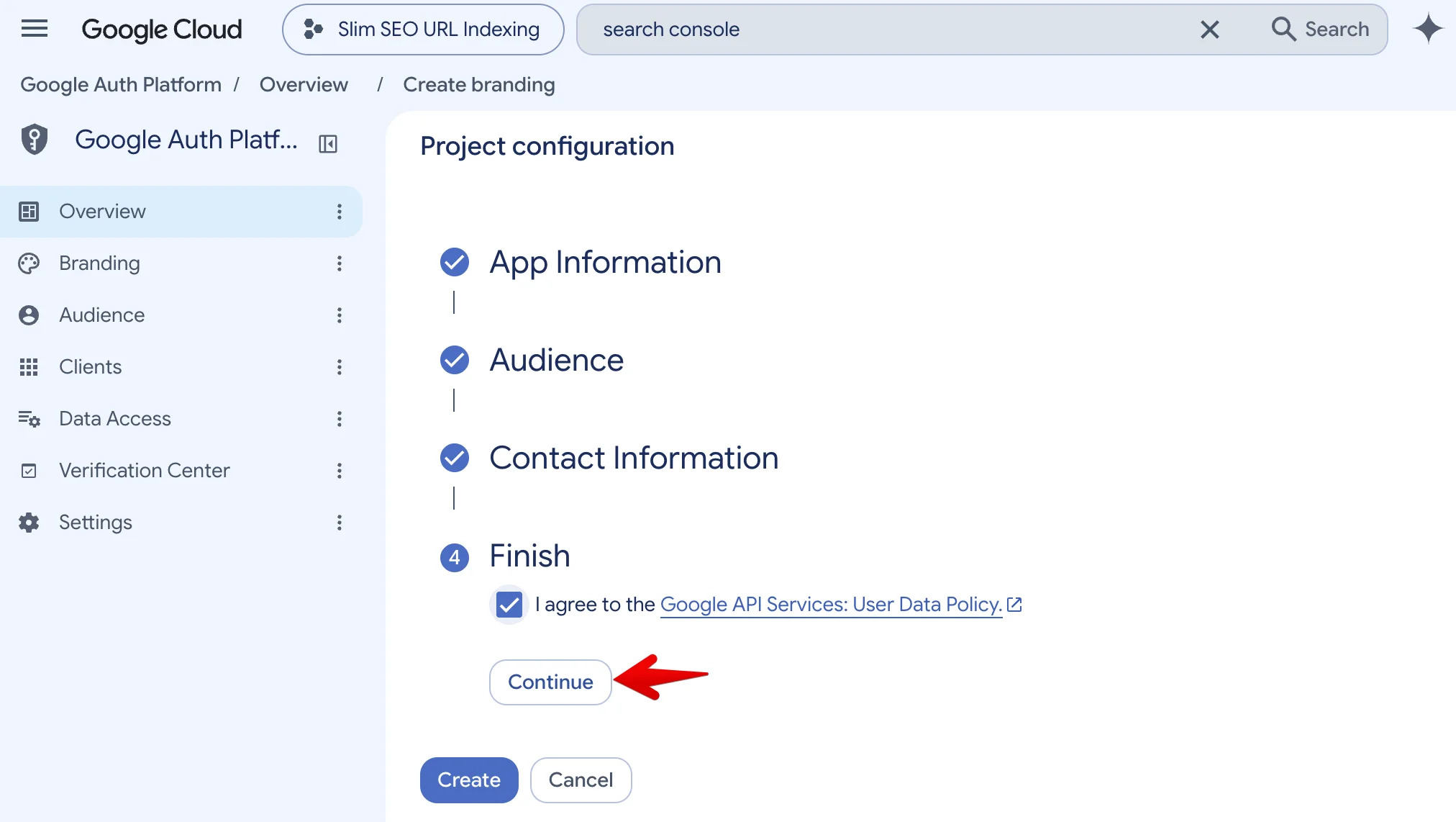
Under Finish, tick "I agree to the Google API Services: User Data Policy". Then click Create:
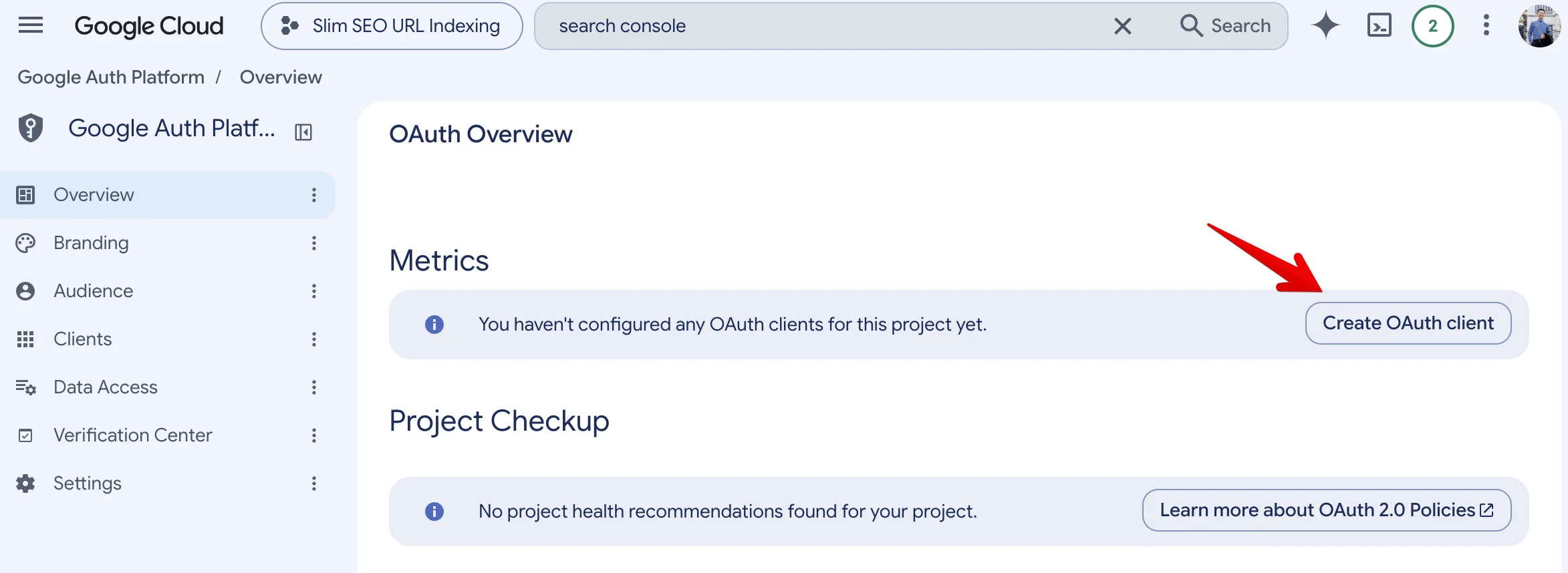
Then click Create OAuth client:
4. Create the credentials
Fill in the form:
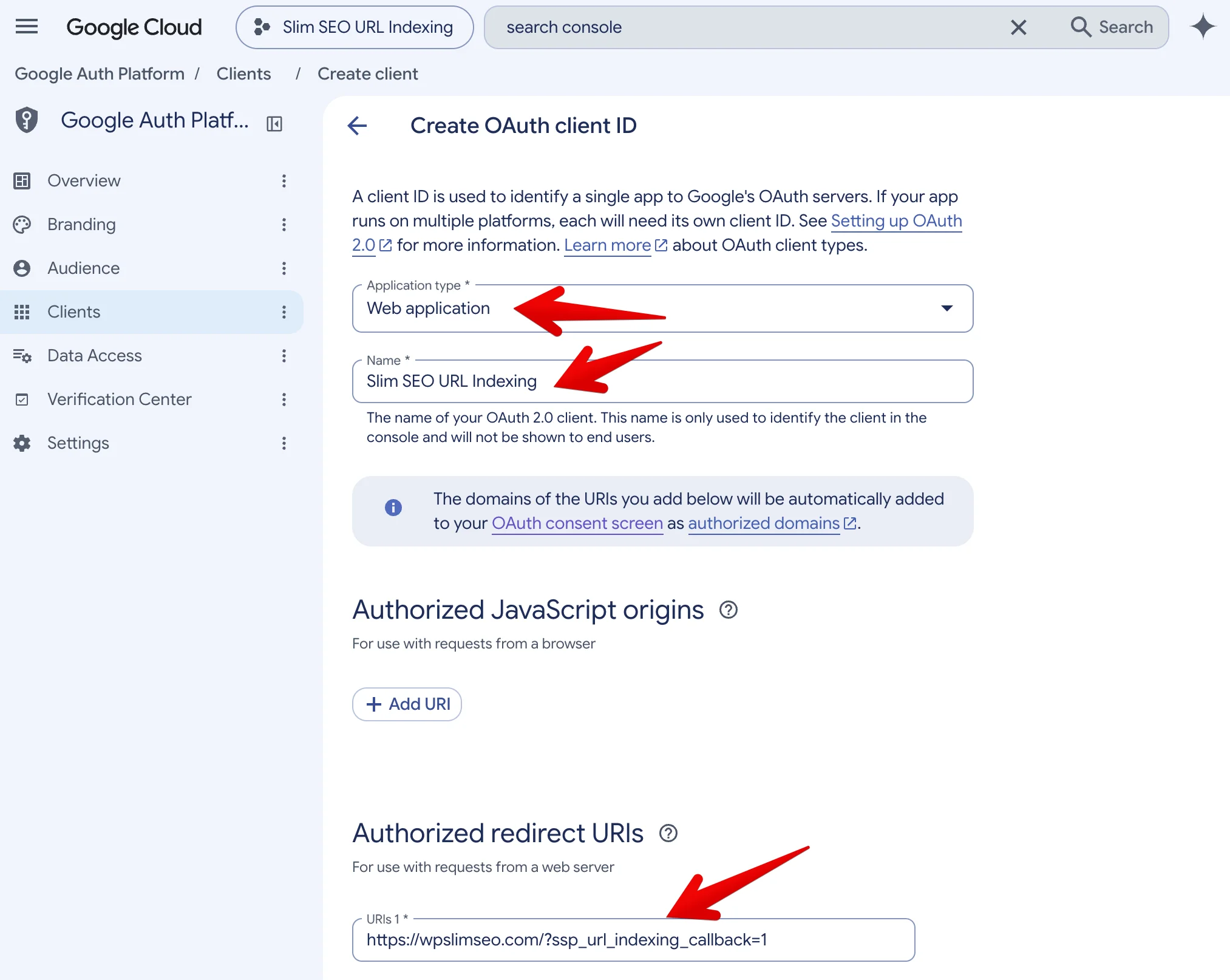
- Application type: Select Web application.
- Name: Any name.
- Authorized redirect URIs: Click + Add URI and enter this address:
https://yourdomain.com/?ssp_url_indexing_callback=1
Replace yourdomain.com with your domain. If WordPress is in a subfolder, add the subfolder too. For example: https://yourdomain.com/blog/?ssp_url_indexing_callback=1.
The address must match your site exactly. Check https and www. If it does not match, Google shows the error redirect_uri_mismatch.
Click Create. A popup shows your Client ID and Client Secret:
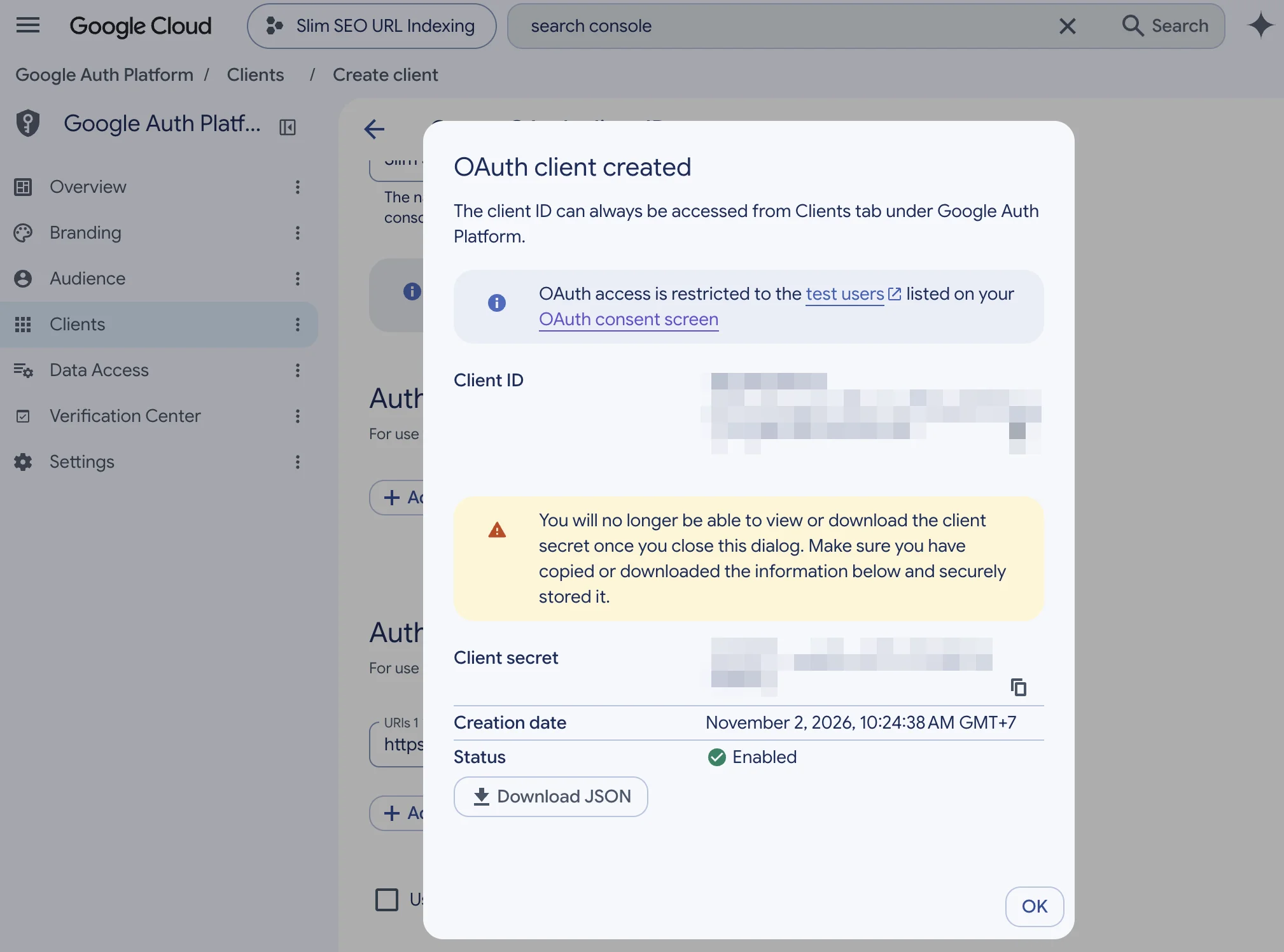
Copy both values and save them somewhere safe. You need them in step 5.
Google shows the Client Secret only once. If you lose it, create a new OAuth client.
You can use one app for all your sites. Add one redirect URI for each site. Use the same Client ID and Client Secret for all of them.
5. Connect in WordPress
Go to Settings > Slim SEO > URL Indexing tab. Paste the Client ID and Client Secret. Click Save Changes.
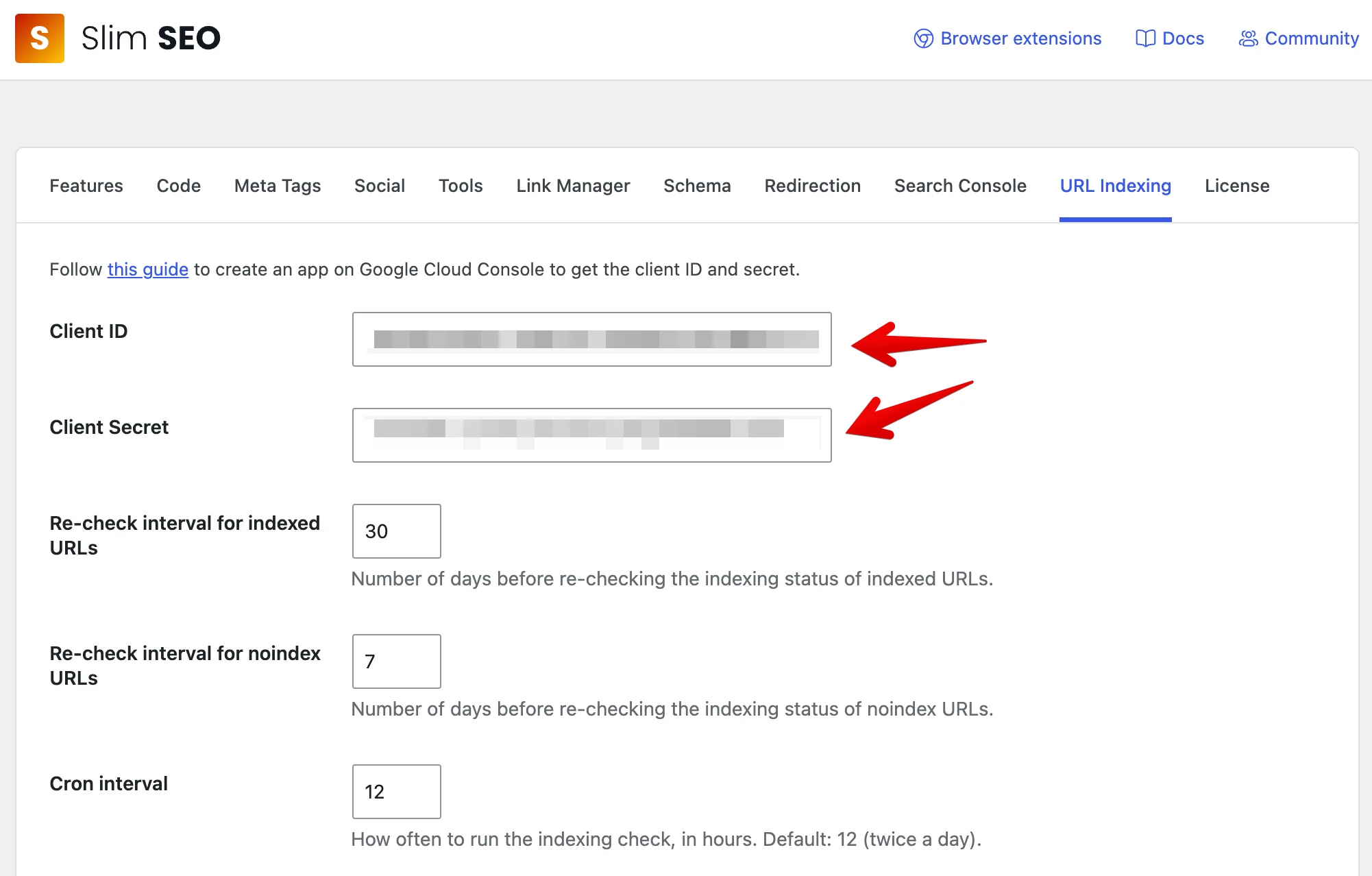
Google opens right away. Choose the Google account that has access to your site in Search Console:
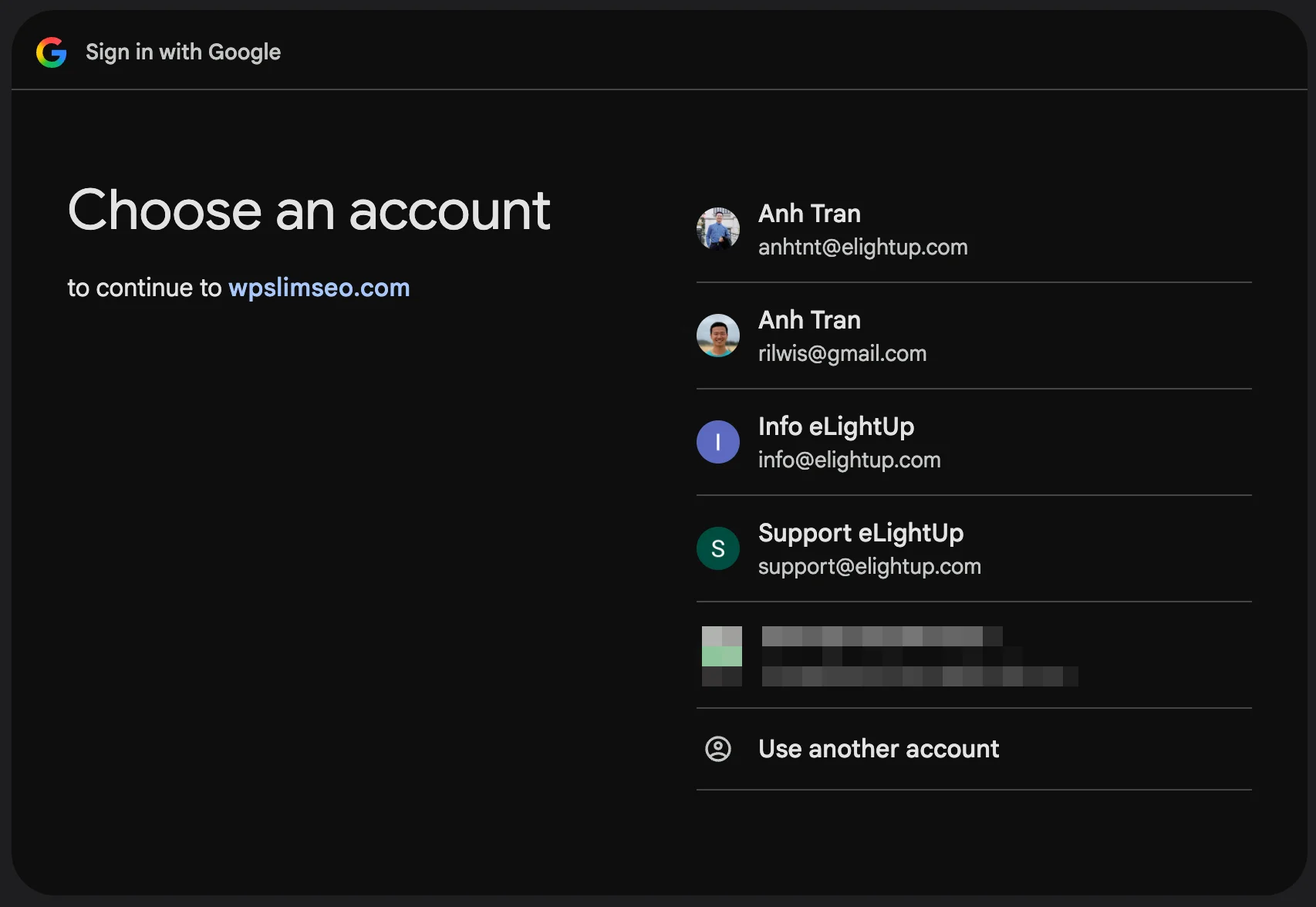
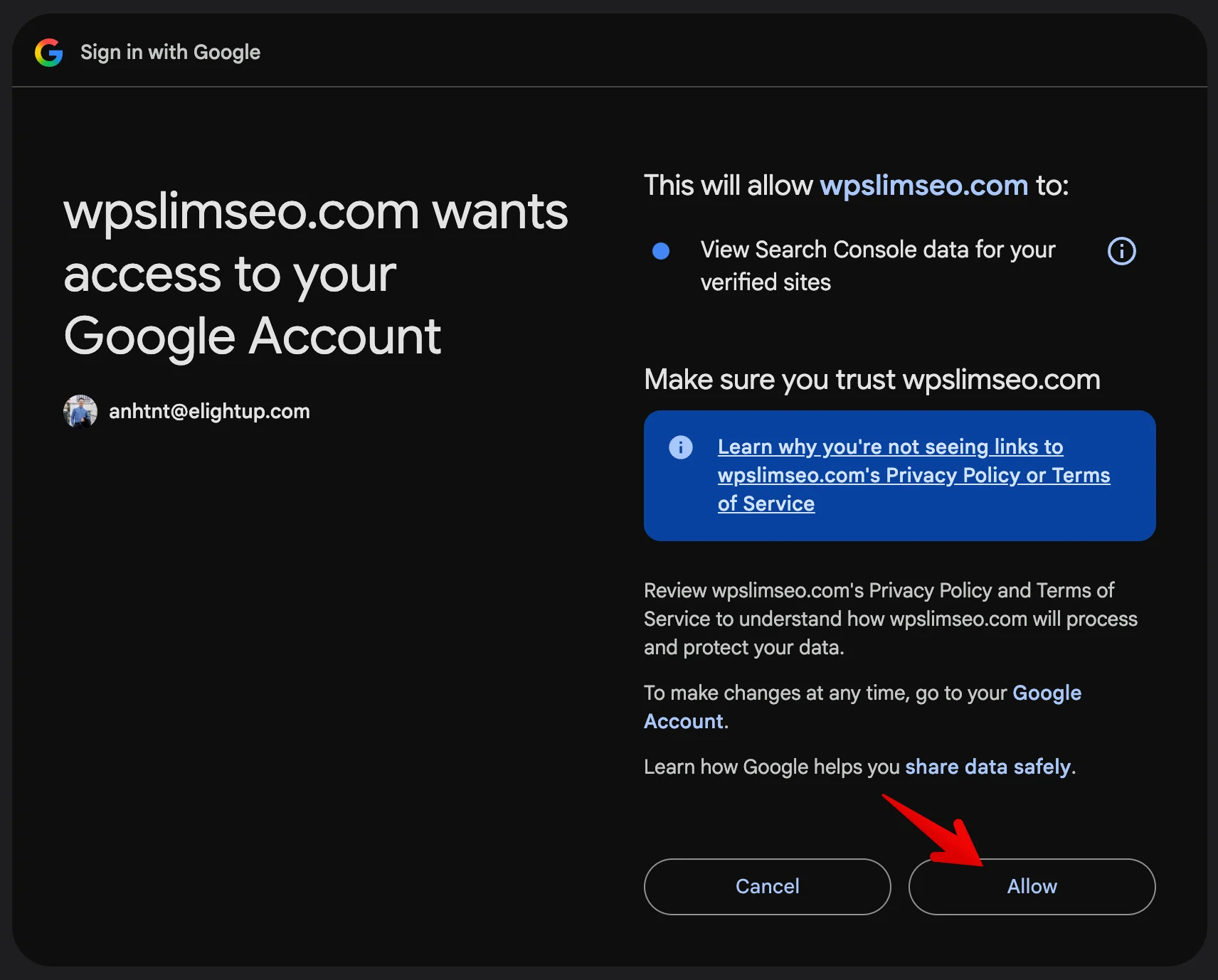
Allow the app to read your Google Search Console data:
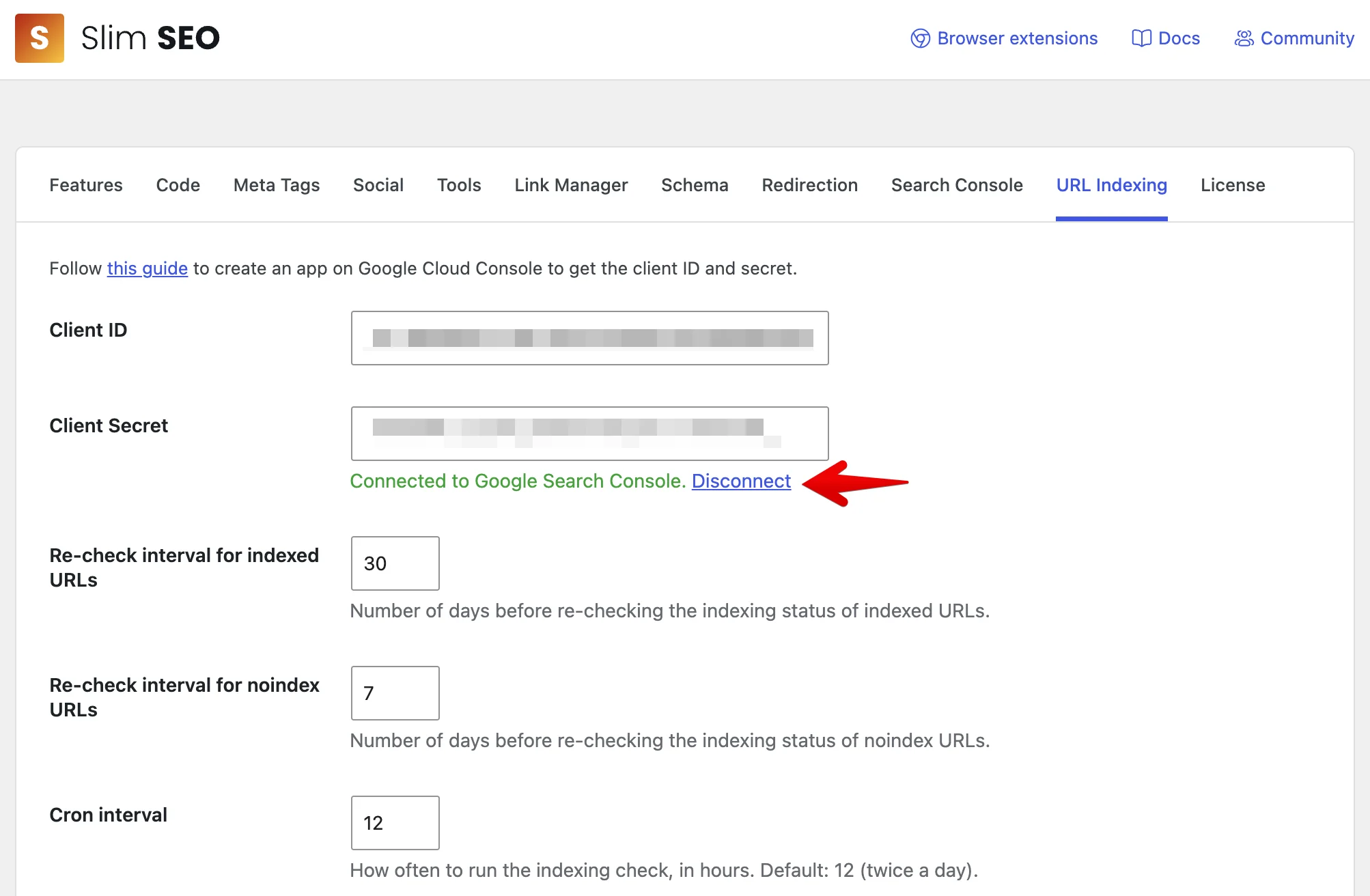
Google then sends you back to WordPress. Under Client Secret, you see the connection status:
| Status | What to do |
|---|---|
| Connected to Google Search Console. | Nothing. The plugin starts checking your URLs in the background. To disconnect, click Disconnect. |
| You denied access to Google Search Console. | You clicked Cancel on Google. Click Reconnect to try again. |
| Not connected to Google Search Console. | The connection expired or was removed. Click Reconnect. |
| Could not connect to Google Search Console. | Check the Client ID and Client Secret. Fix them, then click Save Changes again. |
| Connected, but this site is not in your Google Search Console account. | Add the site to Google Search Console. Or click Disconnect and connect with another account. |
The plugin opens Google only when you change the Client ID or Client Secret. Saving other settings does not change the connection.
Next, learn how to view the indexing status.
Troubleshooting
| Problem | Solution |
|---|---|
redirect_uri_mismatch error | The redirect URI in step 4 does not match your site. Check https, www, and the subfolder. |
| Many URLs show N/A | Google's daily limit ran out. Lower URLs per run or raise Cron interval in the settings. |